
Google Chrome Skills: How to Use AI-Powered One-Click Workflows in Chrome (2026)
Google just made browsing smarter. On April 14, 2026, Google officially launched Skills in Chrome; a powerful new feature that lets you save your best Gemini AI prompts and run them again with a single click, on any webpage, at any time.
If you’ve ever found yourself typing the same AI prompt over and over; whether it’s summarizing a long article, comparing product specs, or calculating nutrition macros in a recipe; Chrome Skills is built exactly for you. In this guide, we’ll break down everything you need to know about Google Chrome Skills: what they are, how they work, real-world use cases, and how to get started today.
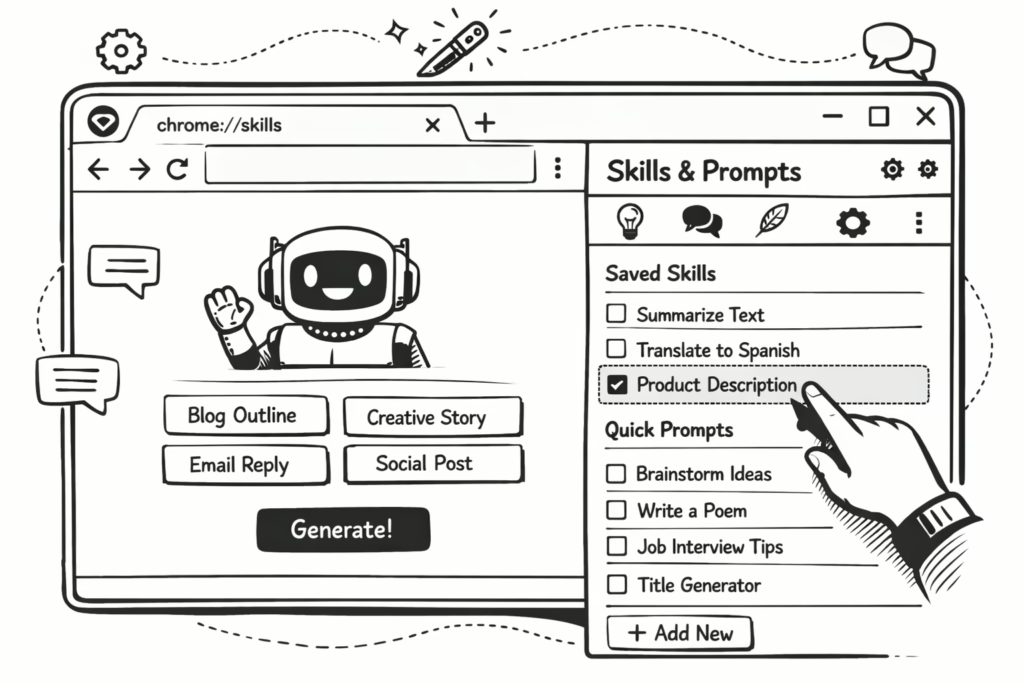
What Are Google Chrome Skills?
Chrome Skills are reusable AI prompt shortcuts powered by Gemini in Chrome. Instead of typing the same prompt every time you visit a new webpage, you can save it as a “Skill” and trigger it instantly with a single click; across any tab or page you’re viewing.
Think of Skills as your personal AI toolkit built right into your browser. You create them once, and they’re available everywhere you browse.
Google describes Skills as a way to:
- Discover ready-made AI workflows from a built-in Skills library
- Save your own custom prompts as reusable Skills
- Remix and edit existing Skills to fit your personal needs
- Repeat any AI task instantly without re-entering prompts
Skills are built on Chrome’s existing Gemini integration and are available on Mac, Windows, and ChromeOS for users with Chrome’s language set to English (US).
How Do Chrome Skills Work?
Chrome Skills work through the Gemini sidebar in Chrome. Here’s the step-by-step process:
Step 1: Write a Prompt in Gemini
Open the Gemini sidebar in Chrome and type a prompt you find useful; for example, “Summarize the key points of this article in 5 bullet points.”
Step 2: Save It as a Skill
Once you’ve written a prompt that works well, save it directly from your chat history as a Skill. Give it a name so you can find it easily later.
Step 3: Access Your Skill Anytime
To use a saved Skill, type a forward slash ( / ) or click the plus sign ( + ) button in the Gemini sidebar. Your saved Skills will appear as a list; just select the one you want.
Step 4: Run It Across Tabs
Your Skill will run on the page you’re currently viewing. You can also select additional tabs to apply the same Skill across multiple pages simultaneously.
Step 5: Edit and Customize
Skills can be edited at any time. If a prompt needs tweaking, simply update it and save the new version. Your Skills are synced across all signed-in Chrome desktop devices.
The Chrome Skills Library: Ready-Made AI Workflows
Not sure where to start? Google has launched a built-in Skills library packed with pre-made workflows for the most common browsing tasks. You can browse the library, add any Skill to your saved collection, and customize it to fit your needs.
Here are some examples of Skills available in the library:
Health & Wellness
- Calculate protein macros for any recipe you’re viewing
- Identify allergens or dietary flags in ingredient lists
- Suggest healthy substitutions for recipe ingredients
Shopping
- Generate side-by-side spec comparisons across multiple product tabs
- Find the best gift option by cross-referencing your budget with the recipient’s interests
- Break down the ingredients or materials of a product you’re viewing
Productivity
- Scan lengthy documents for key information
- Summarize YouTube videos or long articles
- Extract action items or deadlines from meeting notes
Recipes & Food
- Suggest vegan or vegetarian substitutions for any recipe
- Scale recipe ingredients up or down based on serving size
- Create a weekly dinner plan from multiple recipe pages
Real-World Use Cases for Chrome Skills
Chrome Skills shine brightest when you have repetitive AI tasks you perform across many different websites. Here are some practical examples of how people are already using them:
For Researchers & Students
Save a Skill that summarizes any article into 5 key bullet points. Apply it to every research paper or news article you open; no more copy-pasting into ChatGPT or retyping prompts.
For Shoppers
Create a Skill that compares the specs of any product page against your requirements. Open multiple product tabs and run the Skill across all of them at once to get an instant side-by-side comparison.
For Content Creators & Marketers
Build a Skill that extracts the main SEO keywords and key themes from any article. Use it to quickly analyze competitor content across multiple tabs.
For Health-Conscious Users
Save a Skill that calculates the protein, carbs, and calories in any recipe you’re viewing. Apply it to any food blog or recipe site instantly.
For Professionals
Create a Skill that scans any document or report for action items, deadlines, or key decisions. Run it on lengthy PDFs or web pages to save hours of reading time.
Privacy & Security: How Chrome Skills Keeps You Safe
Google has built Chrome Skills on Chrome’s existing security and privacy foundation. Here’s what you need to know:
- Confirmation prompts: Skills will ask for your confirmation before taking sensitive actions, such as sending an email or adding an event to your calendar. No action is taken without your approval.
- Automated red-teaming: Skills benefit from Chrome’s automated security testing to identify and prevent misuse.
- Auto-update protections: Chrome’s auto-update capabilities ensure Skills always run on the latest, most secure version of the browser.
- Same safeguards as Gemini: Skills use the same privacy and safety guardrails applied to all Gemini prompts in Chrome.
Your saved Skills are stored securely and synced across your signed-in Chrome desktop devices, so they’re always available wherever you browse.
Chrome Skills vs. Typing Prompts Manually: Why It Matters
You might wonder why not just type the prompt each time? Here’s why Chrome Skills is a genuine productivity upgrade:
| Feature | Manual Prompting | Chrome Skills |
|---|---|---|
| Speed | Type every time | One click |
| Consistency | Varies each time | Same prompt, same results |
| Multi-tab use | One tab at a time | Run across multiple tabs |
| Customization | Full flexibility | Editable at any time |
| Accessibility | Requires typing | Saved and always ready |
For power users who rely on AI daily, Chrome Skills can save hours of repetitive work every week.
How to Get Chrome Skills: Availability & Requirements
As of April 2026, Chrome Skills are rolling out with the following requirements:
- ✅ Device: Mac, Windows, or ChromeOS (desktop only)
- ✅ Browser: Google Chrome (latest version)
- ✅ Account: Must be signed into a Google account
- ✅ Language: Chrome language must be set to English (US)
- ✅ Gemini in Chrome: Must have Gemini enabled in Chrome
To check if Skills are available for you, open the Gemini sidebar in Chrome and type a forward slash ( / ). If you see a Skills menu, you’re ready to go.
Tips for Getting the Most Out of Chrome Skills
1. Start with the Skills Library
Before building your own, browse the pre-made Skills library. You’ll likely find several that already match your needs and you can customize them from there.
2. Name Your Skills Clearly
Give each Skill a descriptive name so you can find it quickly. For example: “Summarize Article”, “Compare Product Specs”, or “Calculate Macros”.
3. Use Skills Across Multiple Tabs
Don’t forget that Skills can run across multiple tabs at once. This is especially powerful for research, shopping comparisons, or content analysis.
4. Refine Your Prompts Over Time
The best Skills are the ones you’ve tested and refined. If a Skill isn’t giving you the results you want, edit the prompt and try again.
5. Combine Skills with Chrome’s Other AI Features
Chrome Skills work alongside other Gemini features in Chrome, like page summarization, question answering, and writing assistance. Use them together for a fully AI-powered browsing experience.
The Bigger Picture: Chrome’s AI Evolution in 2026
Chrome Skills is part of a much larger shift in how Google is transforming Chrome into an AI-first browser. In 2025, Google integrated Gemini directly into Chrome, allowing users to ask questions about any webpage, summarize content, and get writing help; all without leaving the browser.
Skills takes this a step further by making AI workflows persistent, reusable, and personalized. It’s a direct response to growing competition in the browser space from AI-native browsers like OpenAI’s Atlas, Perplexity’s Comet, and The Browser Company’s Dia ; all of which are betting that the future of browsing is deeply integrated with AI.
With Chrome Skills, Google is making a clear statement: the world’s most popular browser isn’t just a window to the web anymore. It’s an intelligent assistant that learns your workflows and helps you get more done, faster.
Frequently Asked Questions About Chrome Skills
What is Chrome Skills?
Chrome Skills is a feature in Google Chrome that lets you save Gemini AI prompts as reusable one-click tools, called Skills, that can be run on any webpage or across multiple tabs.
Is Chrome Skills free?
Yes. Chrome Skills is available for free to all signed-in Chrome desktop users with Gemini enabled in Chrome.
Can I create my own Skills?
Yes. You can save any Gemini prompt as a custom Skill directly from your chat history, and edit it at any time.
Does Chrome Skills work on mobile?
As of April 2026, Chrome Skills is available on desktop only (Mac, Windows, and ChromeOS). Mobile support has not been announced yet.
Are my Skills private?
Yes. Skills use the same privacy and security safeguards as all Gemini prompts in Chrome, and sensitive actions require your confirmation before being executed.
Conclusion: Chrome Skills Is the Future of AI-Powered Browsing
Google Chrome Skills is one of the most practical AI features to land in a browser in years. By turning your best AI prompts into instant, reusable one-click tools, it eliminates repetitive work and makes Gemini’s power truly accessible, on every page, every tab, every time.
Whether you’re a student, a professional, a shopper, or a content creator, there’s a Skill that can save you time today. Start with the built-in Skills library, build your own custom workflows, and experience what it means to browse with a truly intelligent assistant at your side.
Ready to try it? Update Chrome to the latest version, sign in to your Google account, and open the Gemini sidebar to get started with Chrome Skills today.